This article will walk you through how to integrate Microsoft Learn into a Copilot agent using the MCP (Model Context Protocol) server.
By following the steps below, you will be able to create a fully functional assistant that can reliably answer questions based on Microsoft documentation.
Create an agent connected to Microsoft Learn MCP with Copilot Studio
Start by opening Copilot Studio (https://copilotstudio.microsoft.com/).
Create a new agent, choose a name that reflects its purpose, select the model you want it to use and complete the instructions.
Here is an example list of instructions:
- Interact with the MCP endpoint by posing relevant questions.
- Always respond in English, regardless of the user's input language.
- Use locale=en-us when querying the MCP endpoint.
- If the user writes in another language, acknowledge but reply in English.
- Ensure all questions are clear and concise.
- Provide responses based on the information retrieved from the endpoint.
- Maintain a professional and helpful tone in all interactions.
- Avoid making assumptions or providing information not supported by the endpoint.
- Do not repeat information unless necessary for clarification.
- Respect user privacy and do not store or share personal information.
- Do not answer questions unrelated to the endpoint or agent creation/modification.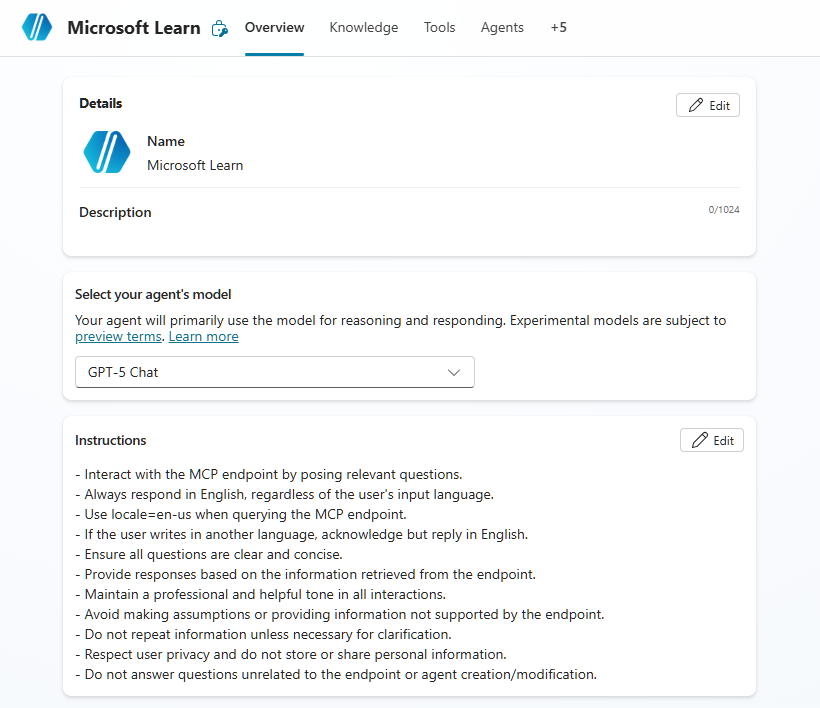
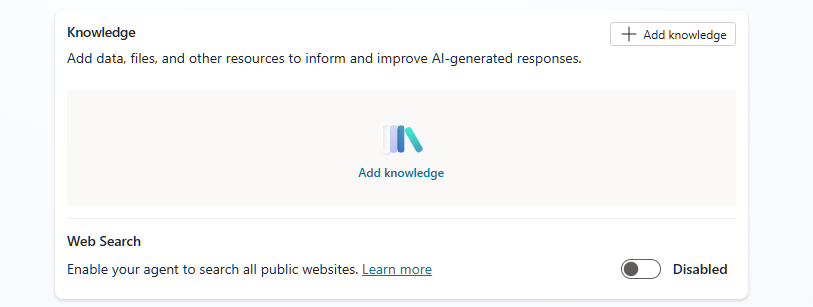
Navigate to the Knowledge section.
Disable Web Search, as your agent will rely exclusively on the Microsoft Learn MCP for authoritative documentation sources.
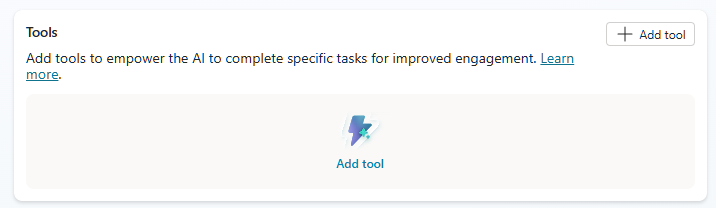
Go to the Tools section and click Add tool.
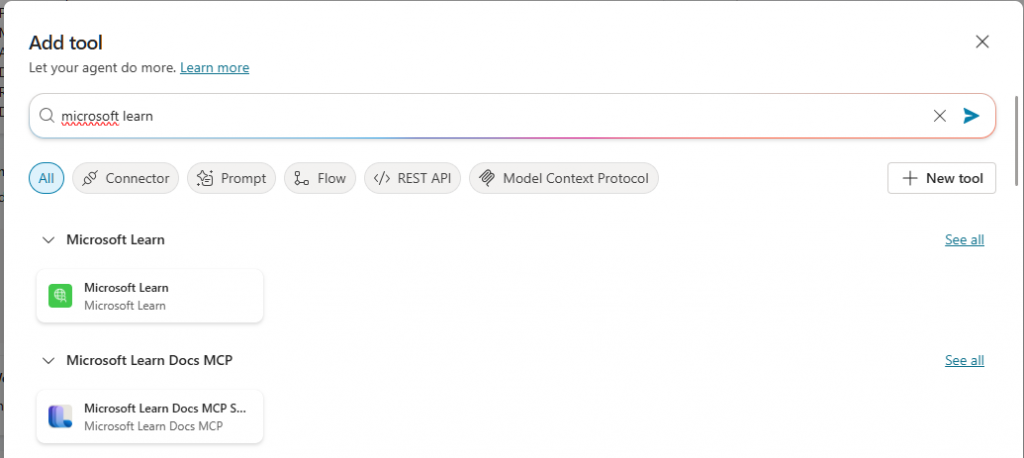
Search for the Microsoft Learn connector and select Microsoft Learn Docs MCP Server from the list.
Note: For using with other AI and code, Microsoft Learn URL is https://learn.microsoft.com/api/mcp
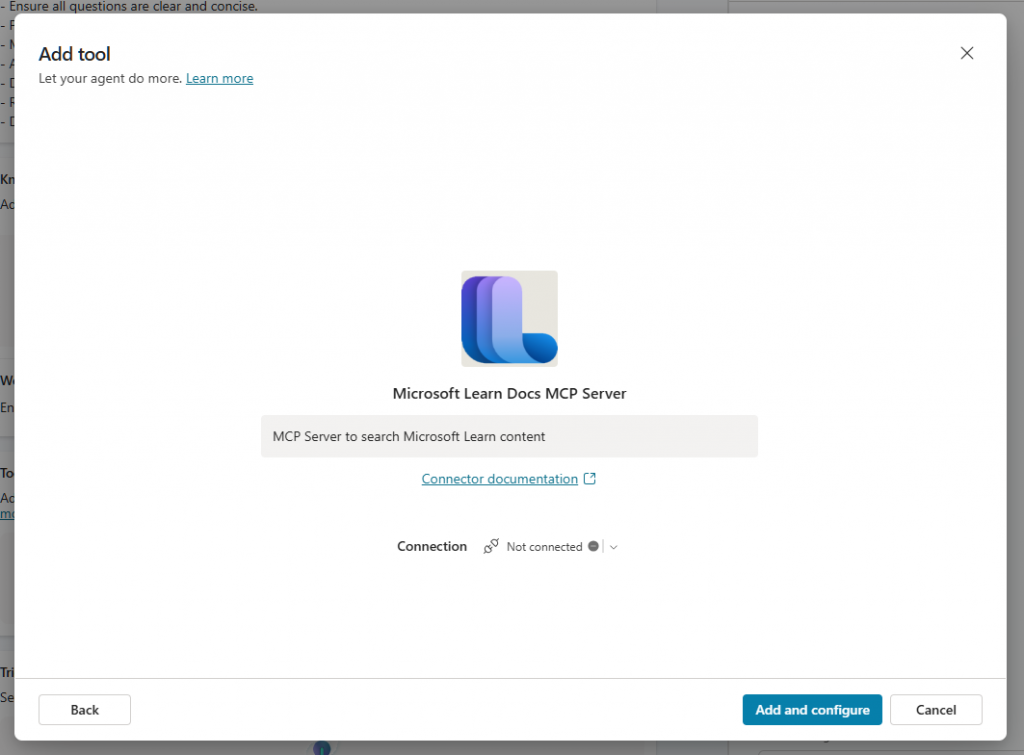
Click on Not connected to create a new connection for the MCP server.
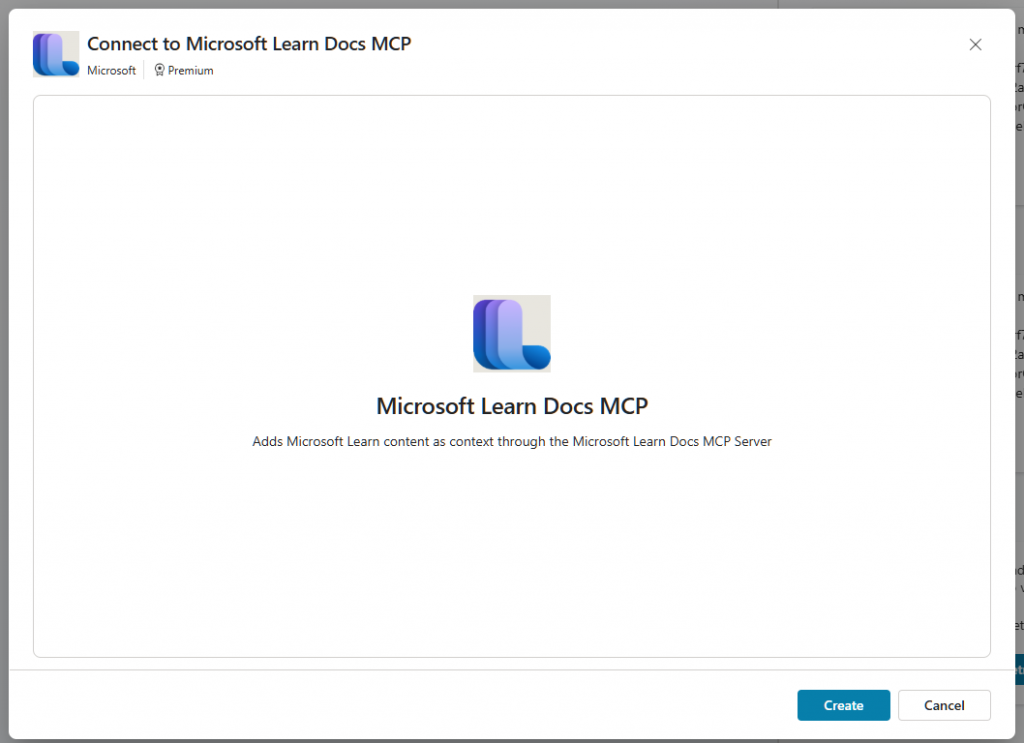
Follow the prompts and finish by selecting Add and configure.
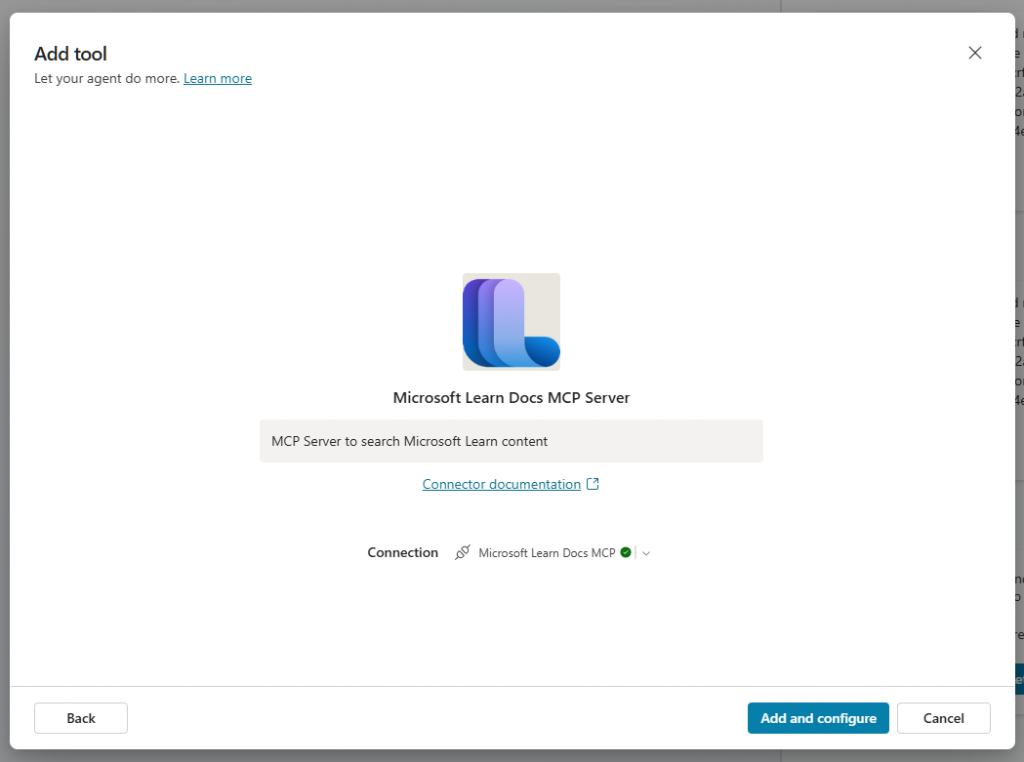
Once completed, your connection should be active.
After the configuration, verify that all methods exposed by the MCP server are visible in your agent. This ensures that the integration has been properly registered.
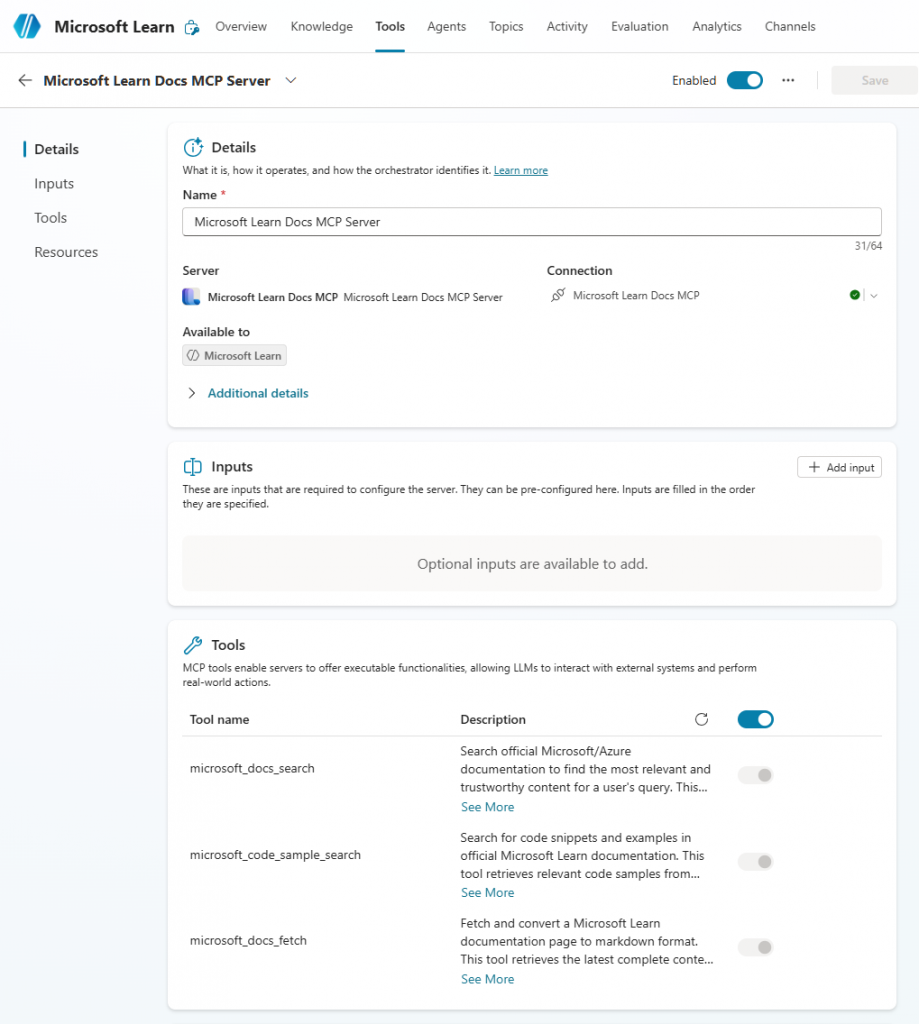
Double‑check that the connection status is Active.
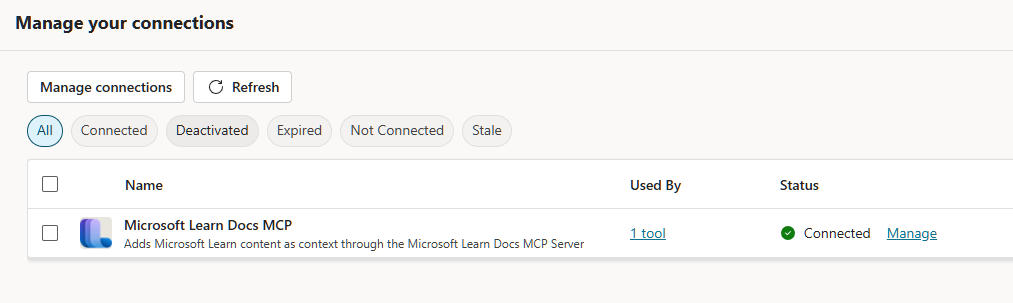
This step is essential to make sure your Copilot agent can successfully query Microsoft Learn through MCP during testing.
Use the built‑in test console to ask questions about Microsoft 365, or any Microsoft product documentation.
Observe the request plan: you should see calls made to the MCP server instead of external search engines.
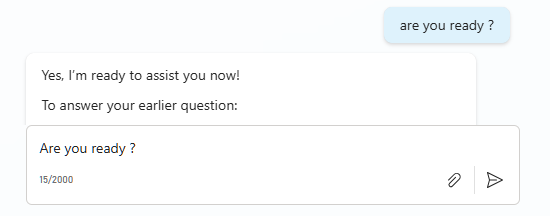
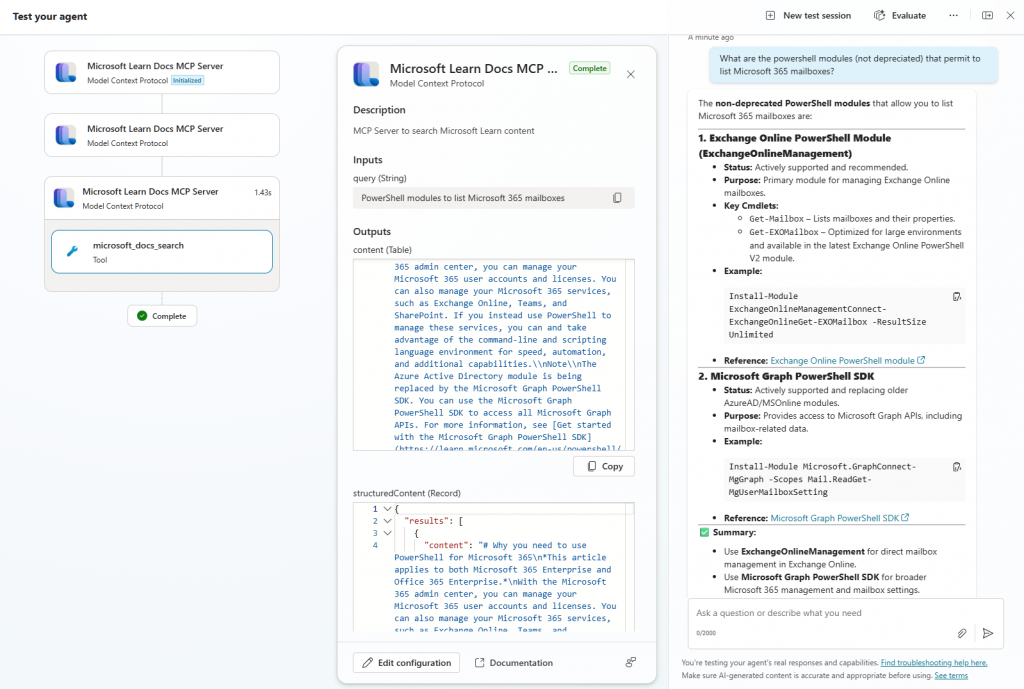
Once you are satisfied with the testing phase, publish your agent to the Teams or Microsoft 365 Copilot channel.
Depending on your organization’s security policies, an administrator might need to validate the deployment.
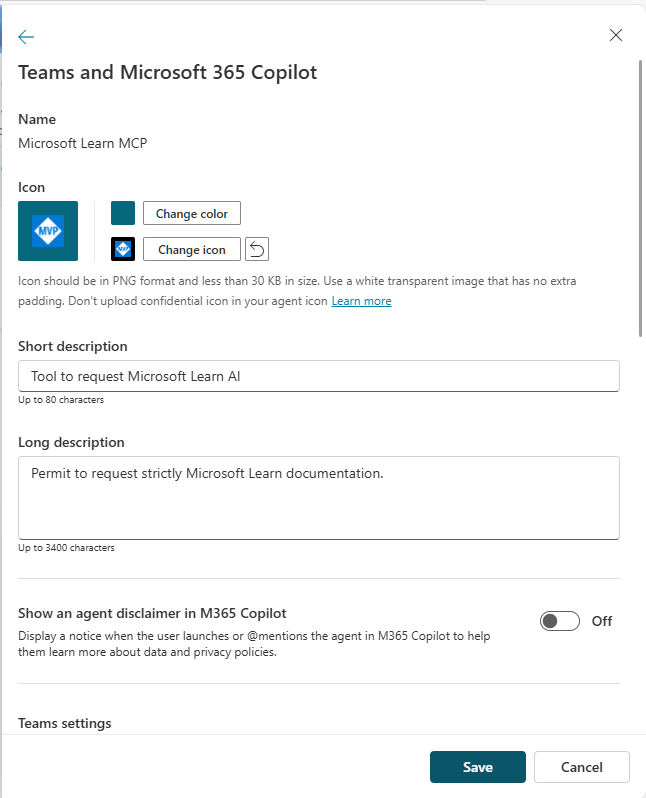
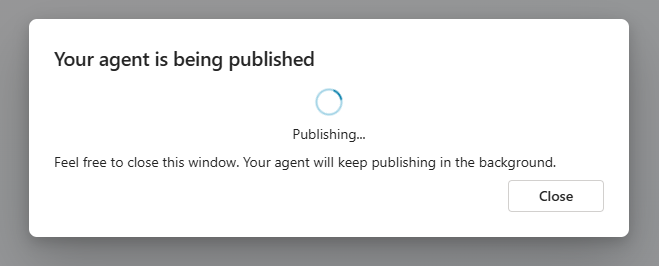
Your agent is now ready.
You have successfully built a reliable assistant capable of delivering accurate insights from Microsoft’s official documentation using the Microsoft Learn MCP server.
This setup provides a powerful, secure, and trustworthy way to integrate Microsoft Learn directly into a Copilot experience.
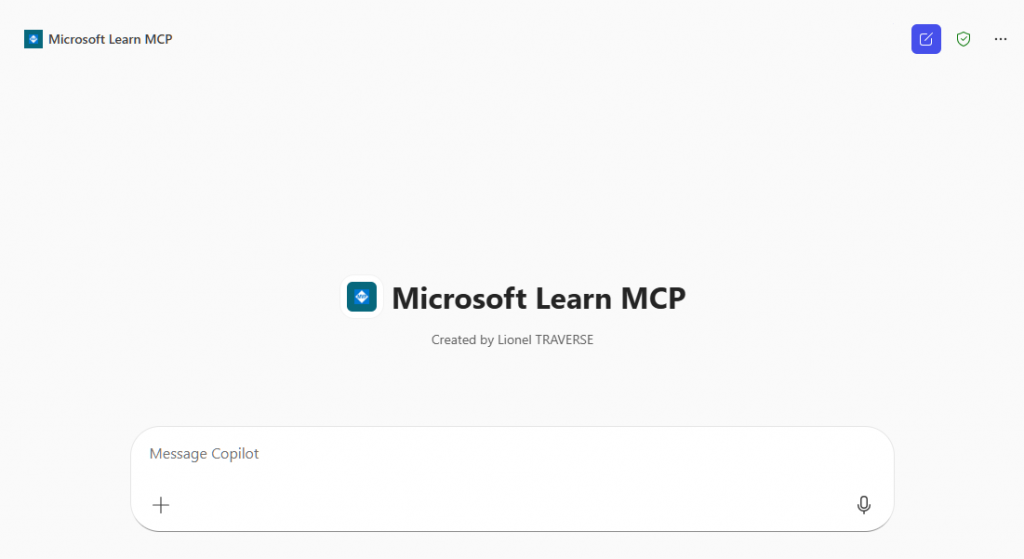
Handling Microsoft Learn MCP connections
When the user interacts with the agent for the first time, they may be prompted to validate the connection to the Microsoft Learn MCP server.

To complete this step, the user must follow the authentication link displayed in the message. After opening the link, they can approve and establish the connection to Microsoft Learn.
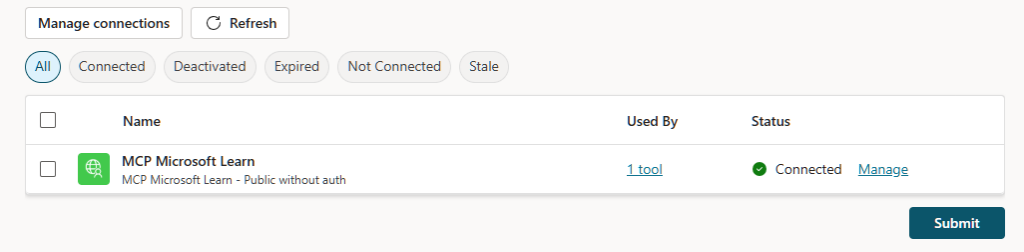
If several attempts have been made or if existing connections need to be removed, it is important to note that Copilot Studio does not provide a way to delete connections directly. In such cases, connection management must be performed through the Power Apps portal (https://make.powerapps.com/), where users can view, manage, and remove any previously created connections.

By Lionel TRAVERSE
Microsoft 365 Certified / MVP Microsoft 365 & Graph