DomainKeys Identified Mail (DKIM) is a widely used email authentication mechanism designed to ensure the integrity and authenticity of email messages. It works by allowing a sending domain to digitally sign outgoing messages using a private key, while the receiving server verifies the signature using a corresponding public key published in DNS.
Historically, many organizations have used 1024-bit RSA keys for DKIM signing. While this key size was once considered secure, it is now regarded as insufficient according to modern cryptographic standards. Moving to 2048-bit DKIM keys significantly improves security and aligns with current best practices.
This article explains how to verify the size of DKIM keys used by a domain hosted on Microsoft 365 and, if necessary, how to extend the key size.
Increase DKIM keys sizes
Check that selector1 and selector2 are present in your public DNS zone.
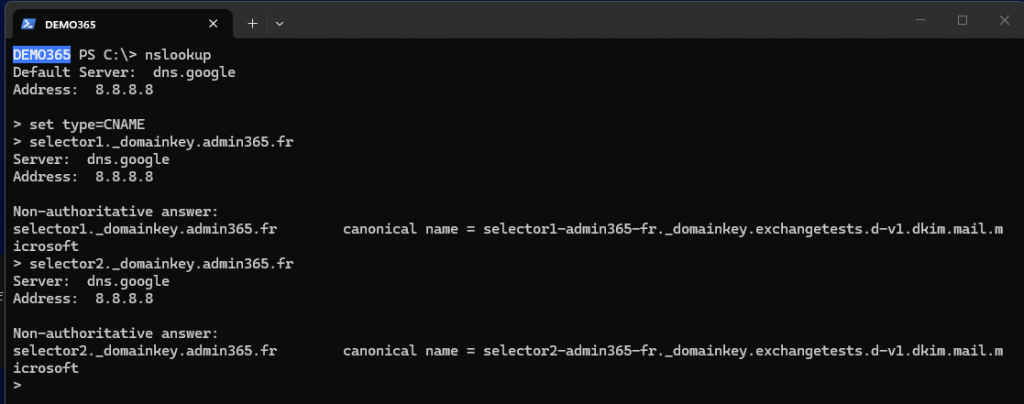
Use Exchange PowerShell module for checking your DKIM configuration.
Get-DkimSigningConfig <yourdomain.com> | Format-List Enabled, Status, Selector1KeySize, Selector2KeySize, KeyCreationTime, RotateOnDate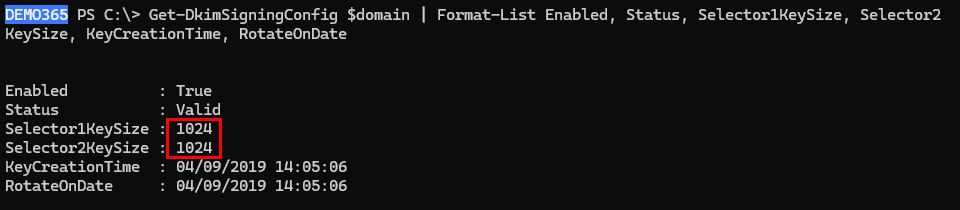
If key size is 1024, then generate a rotation with a key siez equal to 2048.
Rotate-DkimSigningConfig -Identity <your_domain.com> -KeySize 2048
Check the key size for the rotate key :
Get-DkimSigningConfig <your_domain.com> | Format-List Enabled, Status, Selector1KeySize, Selector2Keysize, KeyCreationTime, RotateOnDate, SelectorBeforeRotateOnDate, SelectorAfterRotateOnDate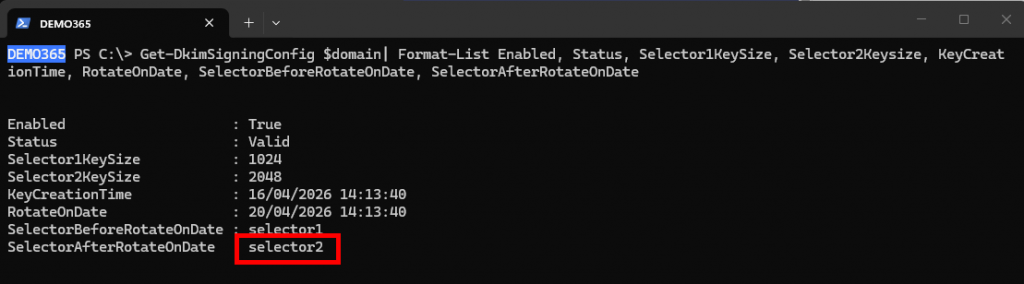
You now need to wait until the scheduled rotation date and then put the new key into production. Do nothing until this has occurred. Above all, do not change the selector1 key until the rotation has taken place. It is advisable to wait 4 days and then verify that the 2028-bit key has become the active key used for signing messages.
After 4 days, you can verify the signature of emails sent from your Microsoft 365 tenant. In the DKIM-Signature section, check the selector (s=) to confirm that you have switched.

If you want both your keys in 2048 and to switch back to selector1, initiate a second rotation to 2048, then check that after the next rotation, 4 days later, Exchange Online uses selector1 again.
Rotate-DkimSigningConfig -Identity <your_domain.com> -KeySize 2048
Get-DkimSigningConfig <yourdomain.com> | Format-List Enabled, Status, Selector1KeySize, Selector2Keysize, KeyCreationTime, RotateOnDate, SelectorBeforeRotateOnDate, SelectorAfterRotateOnDate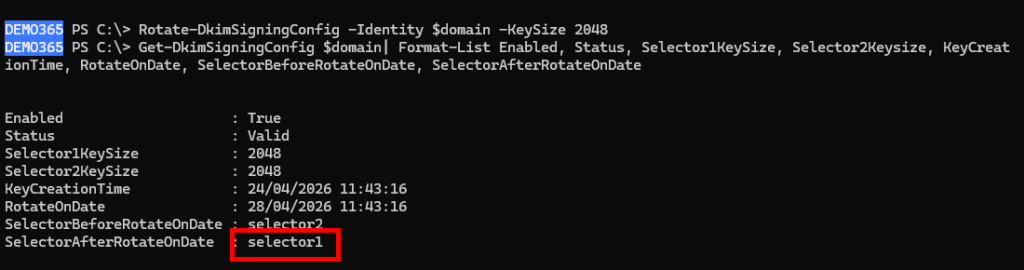
4 days later, you can check emails headers

All your DKIM keys are now set to 2048, and you only need to manage key rotation in accordance with your security team’s guidelines.
By Lionel TRAVERSE
Microsoft 365 Certified / MVP Microsoft 365 & Graph